Explainer Studio guide · 8 min read
How to make a quiz video for Reels and Shorts
A complete walkthrough for making a vertical quiz reel: plan the quiz, let AI write the questions (or type your own), check the answers, pick a theme, timer and reveal, add a voice and music, then record it on a computer or a phone and post it.
Quiz reels keep people watching: a question, a ticking timer, then the answer lights up. Viewers play along, comment their score and share it with friends, which is exactly what Reels, Shorts and TikTok reward. Explainer Studio's quiz editor builds the whole video for you at 1080×1920.
This guide goes through every part of the editor in order, from planning the questions to posting the finished video. You can make a complete quiz for free by typing the questions yourself and recording your own voice; with your own OpenAI key, the AI writes the questions and reads them aloud.
Want to see a finished one first? Watch the Indian GK sample on the right, or read its questions. For topic ideas that open a new quiz with the topic filled in, see the quiz video maker page.
Step by step
-
Plan the quiz before you open the editor
A few minutes of planning makes the video much better. Pick a narrow topic your viewers care about ("Indian GK" or "Cricket World Cups" beats "General knowledge"). Decide who it is for, kids, students or fans, and pick 5 to 10 questions: five makes a 30–45 second reel, ten makes about a minute and a half. Start with easy questions so people stay, and make the last one the hardest. Think of a hook for the first two seconds, such as "Only 3% get all 5 right".
Tip: Short reels get watched to the end more often. If you have 20 questions, make two or three videos instead of one long one.
-
Open the quiz editor and name your quiz
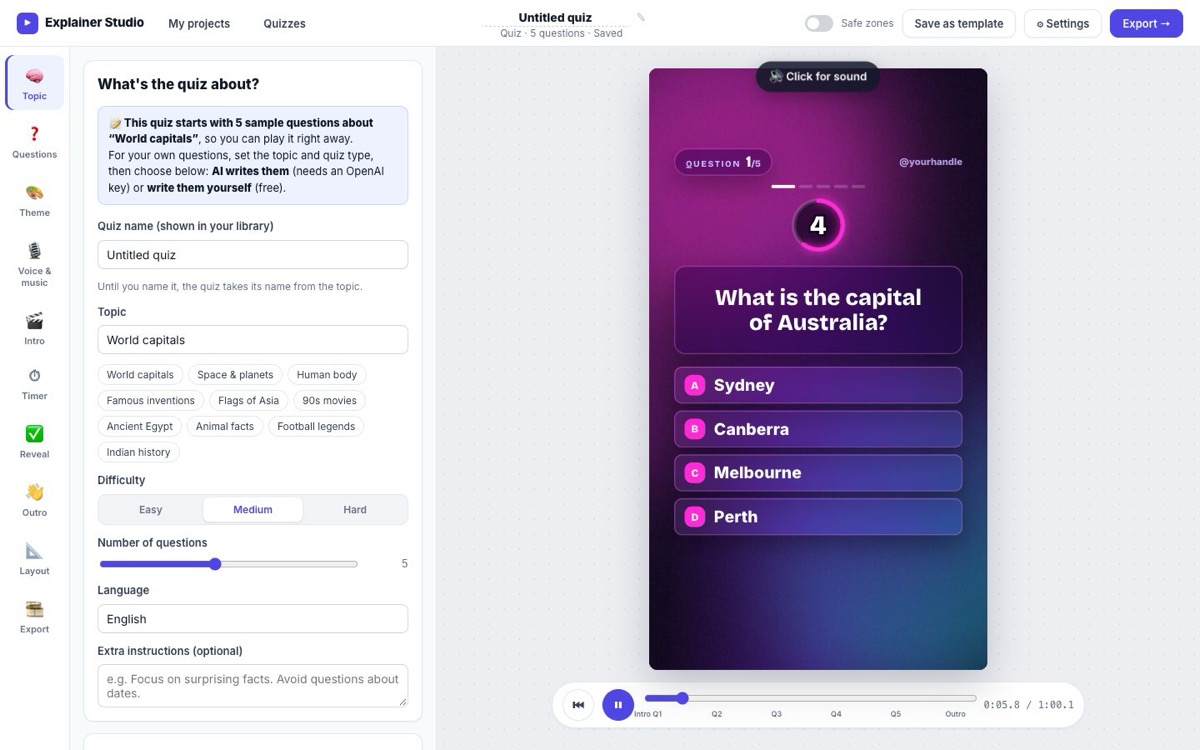
Go to whatshotai.com/quiz, or press ❓ Create a quiz on the home page. A new quiz opens with five sample questions and starts playing straight away, so you can see what you are making; click Click for sound to hear it. Give it a name by clicking the title at the top. The editor has a row of tabs (Topic, Questions, Theme, Voice & music, Intro, Timer, Reveal, Outro, Layout, Export) and the live preview next to them. Every change shows in the preview at once and is saved automatically.
Tip: Your quizzes are saved in this browser, in the quiz library. Sign in with Google (free) to keep them in your account and open them on any device.
-
Set the topic and the quiz type
On the Topic tab type a topic or tap one of the ideas. Choose the difficulty, the number of questions and the language the questions are written in. Then pick a Quiz type:
• Multiple choice: a question with 2 to 4 options; the right one lights up when the timer ends.
• True / False: a statement viewers judge as true or false.
• Number board: a numbered board of answers that are revealed one by one, good for "name the top 10" style quizzes.
Anything else you want, put in Extra instructions.Extra instructions (optional)
For 10-year-olds. Focus on surprising facts. Avoid questions about dates. Make the last question the hardest.
-
Make the questions: AI or by hand
Both ways are on the Topic tab under Make the questions.
• ✨ AI writes them: press Generate and the AI writes the questions and answers from your topic, difficulty and instructions in 10 to 60 seconds. It needs your OpenAI key: press ⚙ Settings at the top to paste it without leaving the quiz. Turn on Also write intro hook & outro CTA to get a ready opening line and ending too.
• ✍️ Write them yourself is free: go to the Questions tab, delete the sample questions and type yours in.Tip: Your key is kept only in your browser and billed to your own OpenAI account.
-
Check every question and answer
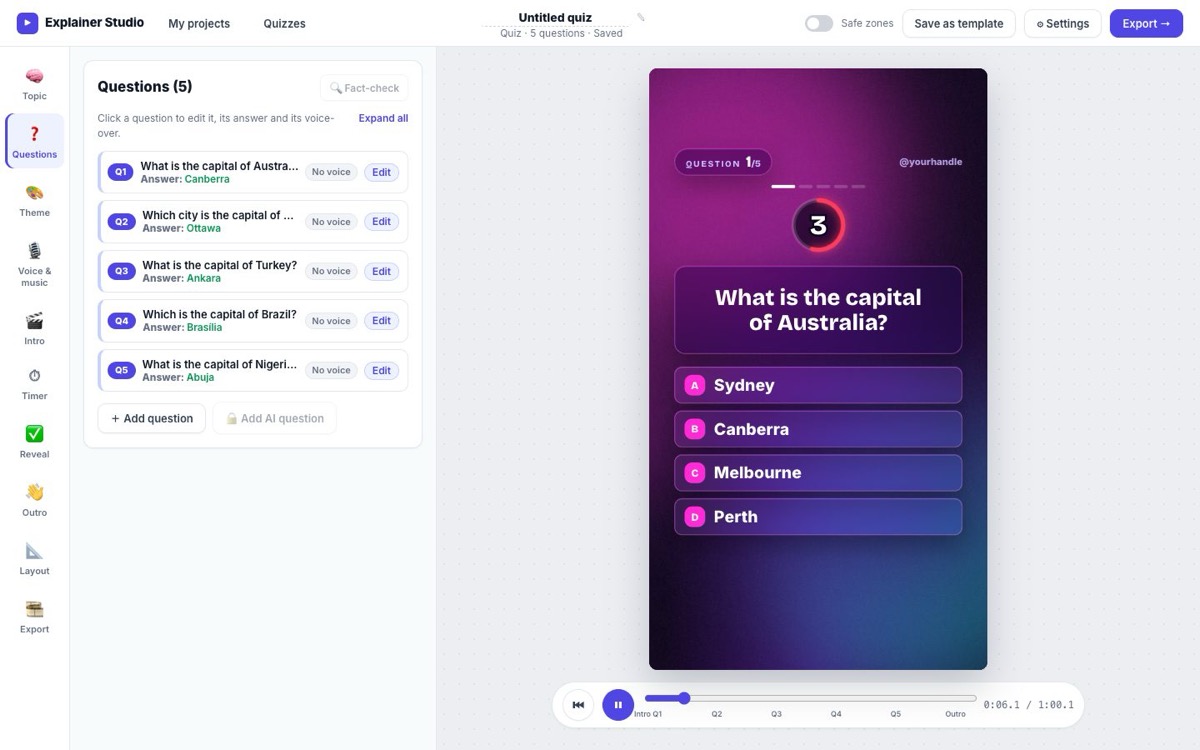
The Questions tab lists each question with its right answer. Click Edit to change the wording, the options or which answer is correct, and add a short explanation that appears with the reveal if you want one. Use the ↑ ↓ arrows to change their order. + Add question adds one by hand; with a key, Add AI question writes one more and Fact-check asks the AI to double-check every answer. Click a question to jump the preview to it.
Tip: AI can get facts wrong, and a wrong answer gets corrected loudly in the comments. Read every answer before you post, especially numbers, dates and spellings.
-
Pick a theme
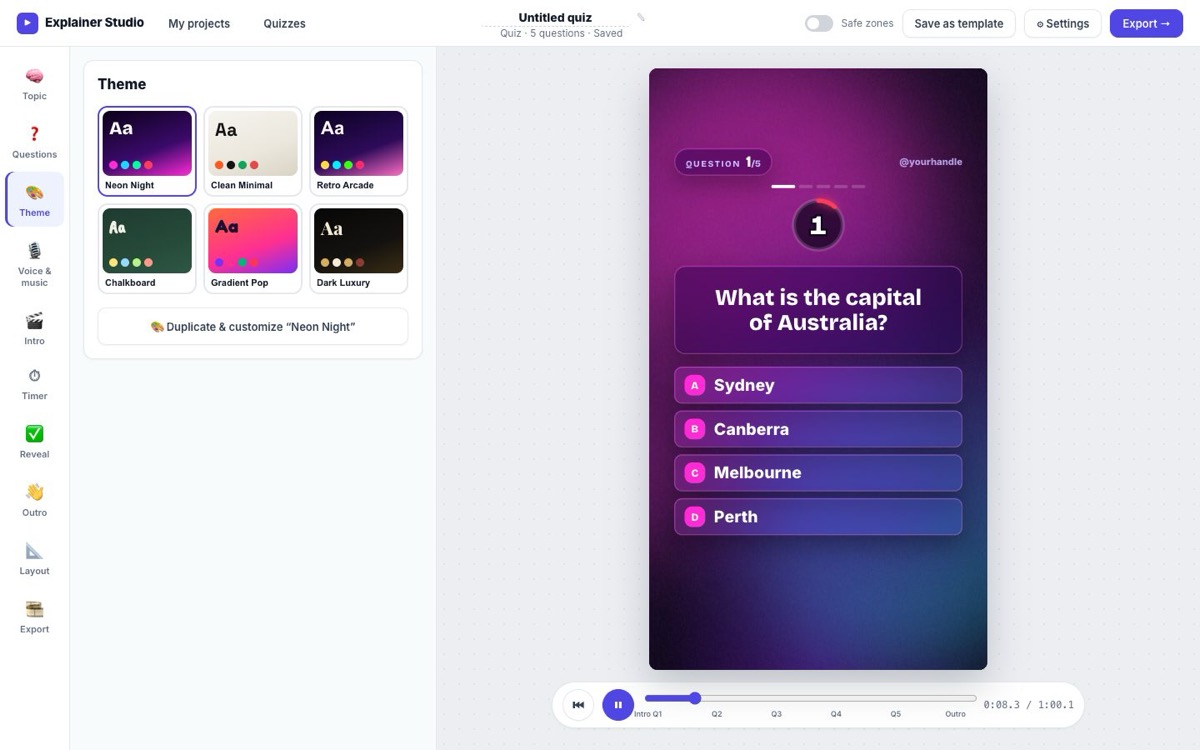
The Theme tab sets the whole look in one click: Neon Night, Clean Minimal, Retro Arcade, Chalkboard, Gradient Pop or Dark Luxury. Each theme sets the background, fonts, colours of the options and the sound pack. To make your own, press Duplicate & customize and change the colours and fonts; your theme is kept for your other quizzes too.
-
Set the intro, timer, reveal, outro and layout
These tabs control how the quiz plays:
• Intro: the first 2–3 seconds. Write the hook and a subtitle; this is what stops people scrolling.
• Timer: seconds per question (2 to 20; 5 is a good start), the ticking sound and an urgent warning in the last seconds.
• Reveal: how the right answer lights up and how long it stays on screen.
• Outro: the ending, such as "How many did you get? Comment your score!" and a follow line.
• Layout: where the question and options sit, and your @handle.
Turn on Safe zones at the top to see where Instagram, TikTok and YouTube put their buttons, and keep text out of those areas.Tip: Like the settings? Save as template keeps everything except the questions, so your next quiz starts with the same look and timing.
-
Add a voiceover and music
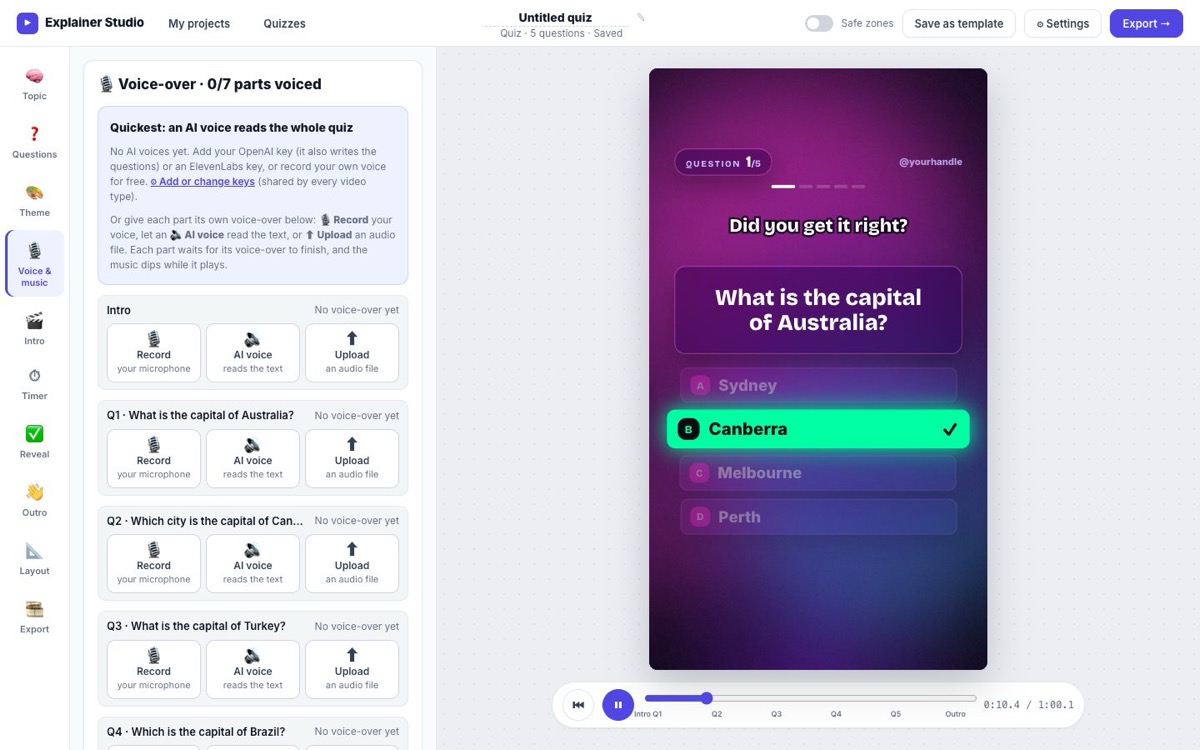
On Voice & music the quickest option is one AI voice reading the whole quiz (with an OpenAI or ElevenLabs key). For free, give each part its own voiceover: 🎙 Record with your microphone or ⬆ Upload an audio file. Each question waits for its voiceover to finish before the timer starts. The heading shows how many parts are not voiced yet. Below that, choose background music or press ⬆ Upload music to use your own track; it dips automatically while someone speaks.
Tip: Only use music you have the rights to. Instagram and YouTube can mute videos with copyrighted tracks; adding a song from the app's own library when you post is often safer.
-
Record the video on a computer
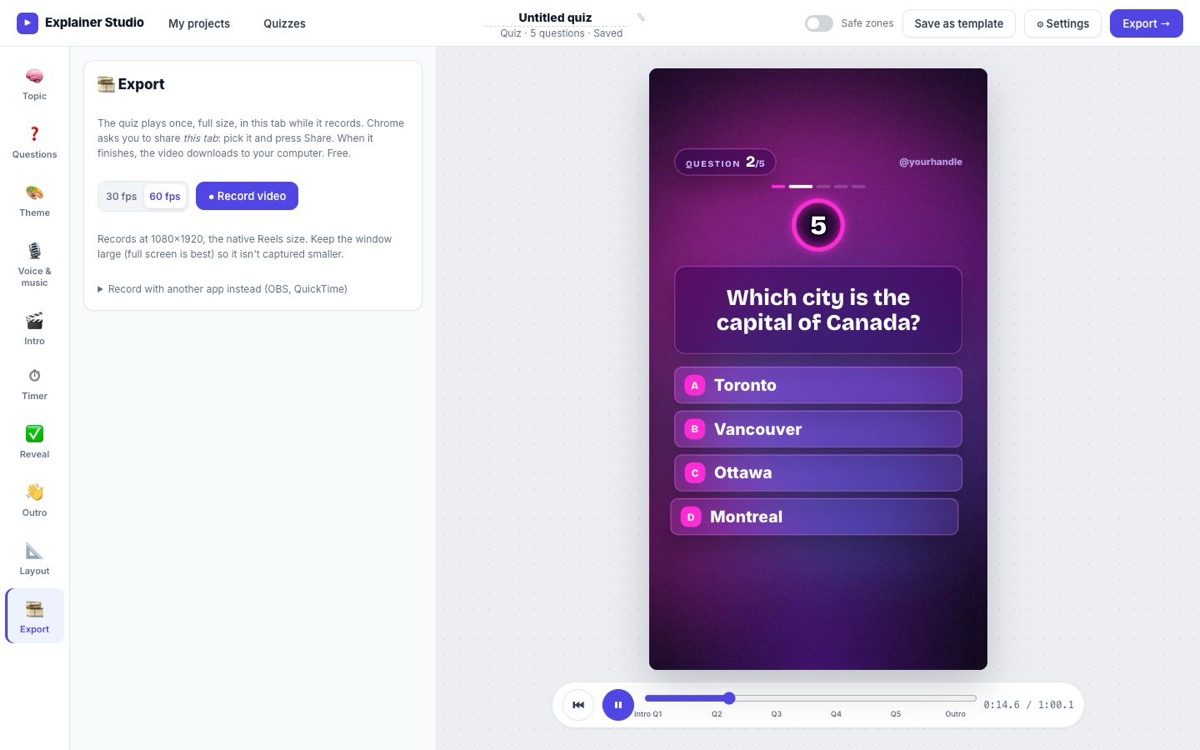
Open the Export tab, choose 30 or 60 fps and press ● Record video. Use Google Chrome or Microsoft Edge on a computer: when the browser asks what to share, pick this tab and press Share. The quiz plays once at full size and a 1080×1920 video downloads to your computer. The Export tab keeps a list of every video you have made from this quiz, with its date and file name.
Tip: Make the window large (full screen is best) and keep the tab visible until it finishes, so every frame is captured at full size.
-
Or record it on your phone
Phones can't record a browser tab, so on a phone the Export tab shows 📱 Or record it on this phone. Press ▶ Play full screen, then start your phone's own screen recorder (iPhone: Control Centre → Screen Recording; Android: Quick Settings → Screen record), and press ▶ Play. The quiz plays full screen with sound; stop the recorder when it ends and trim the first and last second in your photo app. The quality is a little lower than recording on a computer.
Tip: Prefer full quality? Use Share the link on the Export tab to send the quiz to yourself, open it on a computer and record it there.
-
Post it as a Reel, Short or TikTok
Upload the video file in the Instagram, YouTube or TikTok app as a Reel, Short or TikTok. Pick a cover that shows the first question, write a caption that repeats the challenge (<em>"Can you get all 10? 🇮🇳"</em>) and add a few topic hashtags. Ask viewers to comment their score: replies to comments push the video to more people. Posting a new quiz on the same topic every few days builds a series people come back for.
Questions
Can I make a quiz without any API key?
Yes. Type the questions yourself, record or upload your own voiceover, pick a theme and music, and record. All of that is free.
Is there a watermark?
Videos made without an account carry a small “Made with whatshotai.com” mark. Sign in with Google, which is free, and it is removed.
How long should a quiz video be?
Five questions with 5 seconds each makes a 30–45 second video, which suits Reels, Shorts and TikTok well. Ten questions is about a minute and a half.
Can I make a quiz in Hindi or another language?
Yes. Set the Language on the Topic tab before you press Generate, or type your questions in any language.
Where are my quizzes?
In the quiz library, saved in your browser on this device, or in your account if you are signed in. Each quiz shows how many videos you have made from it.
What is “Safe zones”?
A toggle at the top of the editor that shades the areas Instagram, TikTok and YouTube cover with buttons and captions, so you can keep important text out of them. It never appears in the recorded video.