Create games with Gemini Canvas
Describe any simple browser game in Gemini, open Canvas from the + menu, and wait a few minutes for HTML/CSS/JS you can play in Preview—great for learning how games are coded.
How to use it
Use toolEverything you need for this tool is on this page. Overview, safety, and pricing are in “More about this tool” at the bottom.
A parent’s Google account (18+) should run Canvas. Review the generated game and any code before kids play or share. Do not paste personal data into prompts.
Flow: open gemini.google.com/app → type your game idea → tap + → choose Canvas → wait while it writes HTML/CSS/JS → switch to Preview and play. First build often takes a few minutes.
-
Open Gemini and describe your game
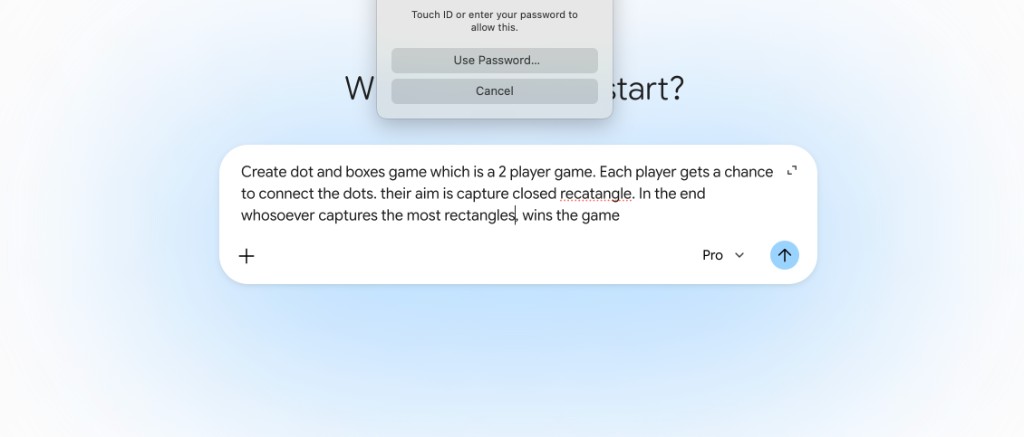
Sign in at gemini.google.com/app with a parent account. In the main prompt box, describe the game clearly: players, rules, and how someone wins. Example: a two-player Dots and Boxes game where players connect dots to close rectangles and the highest score wins.
Example prompt
Create a dots and boxes game for 2 players. Each player takes turns connecting adjacent dots with a line. When a player closes a rectangle, they score a point and get another turn. The player with the most rectangles at the end wins. Make it colorful and easy for kids.
-
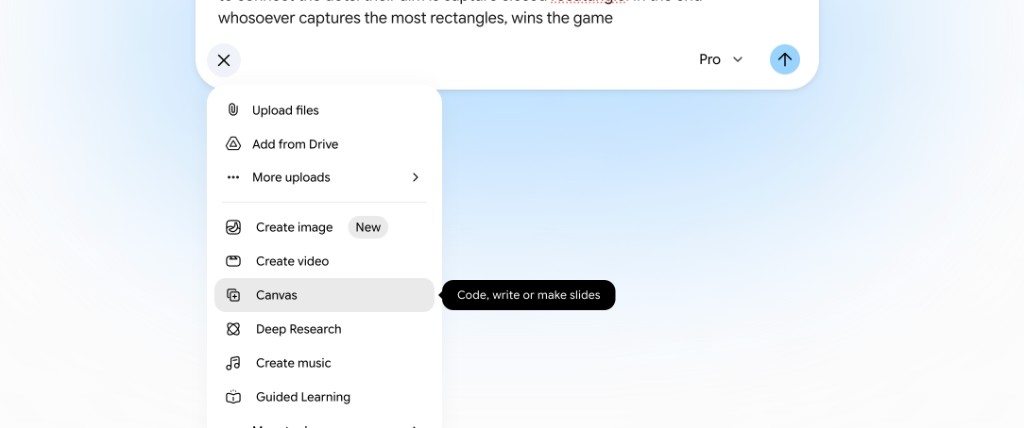
Tap + and choose Canvas
Tap the + button on the left of the input area. From the menu, select Canvas (tooltip: “Code, write or make slides”). Canvas tells Gemini to build an interactive page—not just chat text.
Tip: If Canvas is missing, check that you are signed in and try refreshing. Feature names can change—look for the canvas / code workspace option.
-
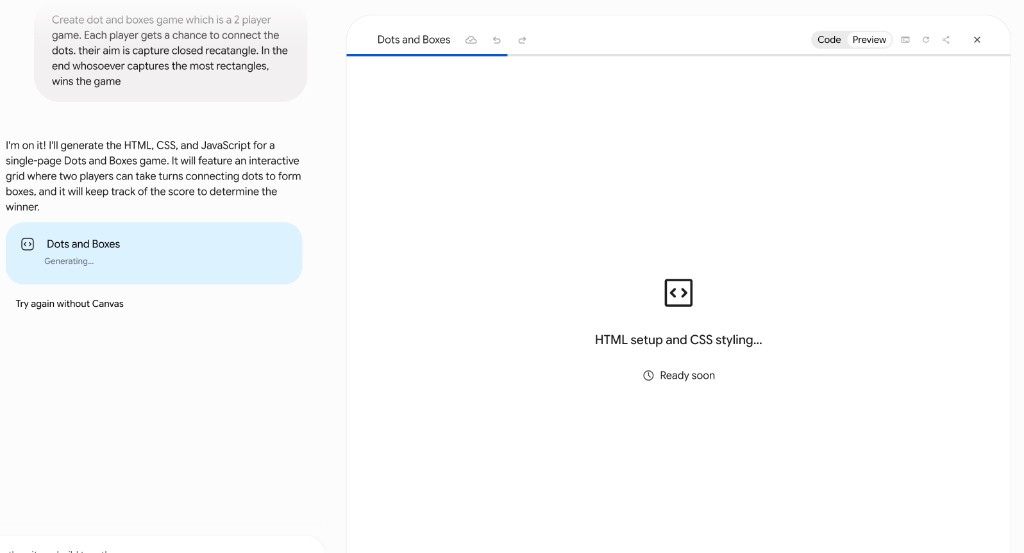
Wait while Gemini generates the game
Send the prompt. A Canvas panel opens on the right with a title (for example “Dots and Boxes”) and a Generating… status while it writes HTML, CSS, and JavaScript. Stay on the tab—this can take a few minutes for a full game. Use Code to peek at the source if you are curious.
-
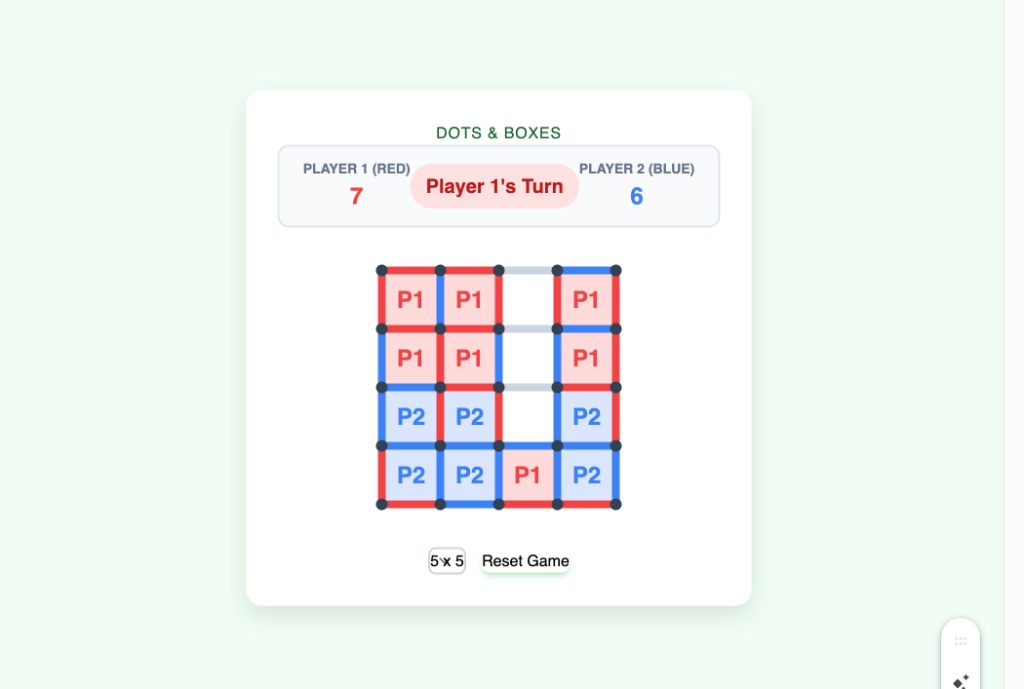
Open Preview and play
When generation finishes, click Preview in the Canvas toolbar. The game runs inside the panel—click lines, take turns, and use any Reset or grid-size controls the model added. If something breaks, ask in chat: “Fix the bug when…” or “Make the board 6×6.”
-
Iterate and learn
Ask follow-ups in the same chat: add sound, change colors, add a timer, or simplify rules for younger players. Each big change may regenerate the Canvas. Talk about what HTML, CSS, and JavaScript are doing—Canvas is a fun intro to “games are programs.”
Tip: Start with classic games (tic-tac-toe, memory match, snake) before complex 3D ideas—smaller prompts finish faster and fail less often.
More about this tool — overview, features, safety, pricing
Overview
Gemini Canvas turns natural-language game ideas into a playable browser mini-game—HTML, CSS, and JavaScript in one workspace with Code and Preview tabs.
Families can prototype board games, quizzes, or arcade-style toys without installing an IDE; a parent should supervise account use and review output.
Generation time varies with complexity and server load—simple two-player games often appear in a few minutes; huge requests may time out or need a shorter prompt.
Key features
- Prompt-to-playable game. Describe rules in plain English; Gemini builds a single-page game you can try immediately in Preview.
- Live code workspace. Switch between Code and Preview to connect “what we typed” with “what runs.”
- Easy remixing. Follow-up messages adjust mechanics, layout, or difficulty without starting from scratch.
- No local install. Runs in the browser through Gemini—good for a quick weekend project.
Safety & privacy notes
Data & accounts
- Requires a Google account; prompts and generated code are processed by Google. Do not include real names, schools, or photos of children in game prompts unless you accept Google’s terms.
Supervision
- Parents should own the account, approve prompts, and check games for inappropriate text or imagery before kids play.
Content & community
- AI can produce buggy or surprising behavior—treat online play as supervised. Sharing Canvas output may expose your prompt; use family judgment.
Family project ideas
- Classic Dots and Boxes. Use the example prompt, then tweak grid size and colors together. (20–30 min)
- Math quiz game. Ask for multiplication flash cards with score and celebratory animation when correct. (25 min)
- Two-player tic-tac-toe. Smallest possible game—compare first draft vs after asking for “bigger buttons and scoreboard.” (15 min)
- Code peek challenge. In Code view, find where the game checks for a winner and explain it in kid-friendly words. (15 min)
Pricing & account
Freemium — Gemini free tier may work for simple games; Pro plans give more capacity. Confirm limits on gemini.google.com.
Account required: Yes
Platforms: web