Cricket hero selfie video (family project)
Not free: you’ll need a paid Higgsfield plan (Basic is often about $5/mo to start—confirm on their site). For each cricketer, use Image → Create Image and pick Nano Bro or Nano Banana Pro in the model list, then Video → Create Video with Kling, two references + motion prompt per clip; download clips and stitch in CapCut or Edits.
How to use it
Use toolEverything you need for this tool is on this page. Overview, safety, and pricing are in “More about this tool” at the bottom.
Use only a reference photo of your child that you are allowed to use. AI images of real cricketers are synthetic—never imply a real meet-up or news. Follow Higgsfield’s terms and your local rules on likeness and deepfakes.
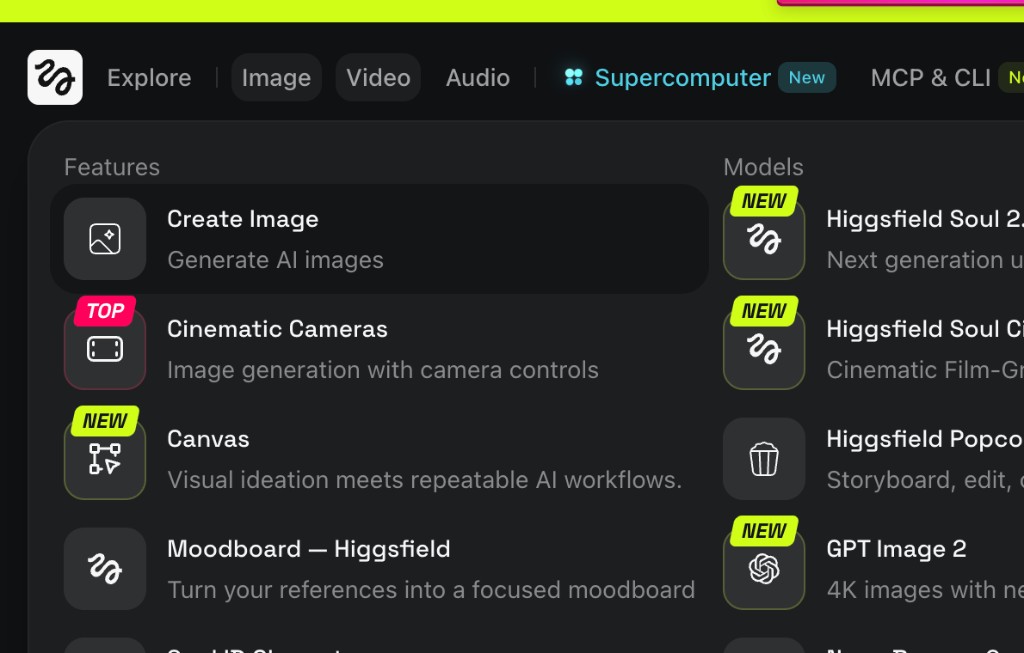
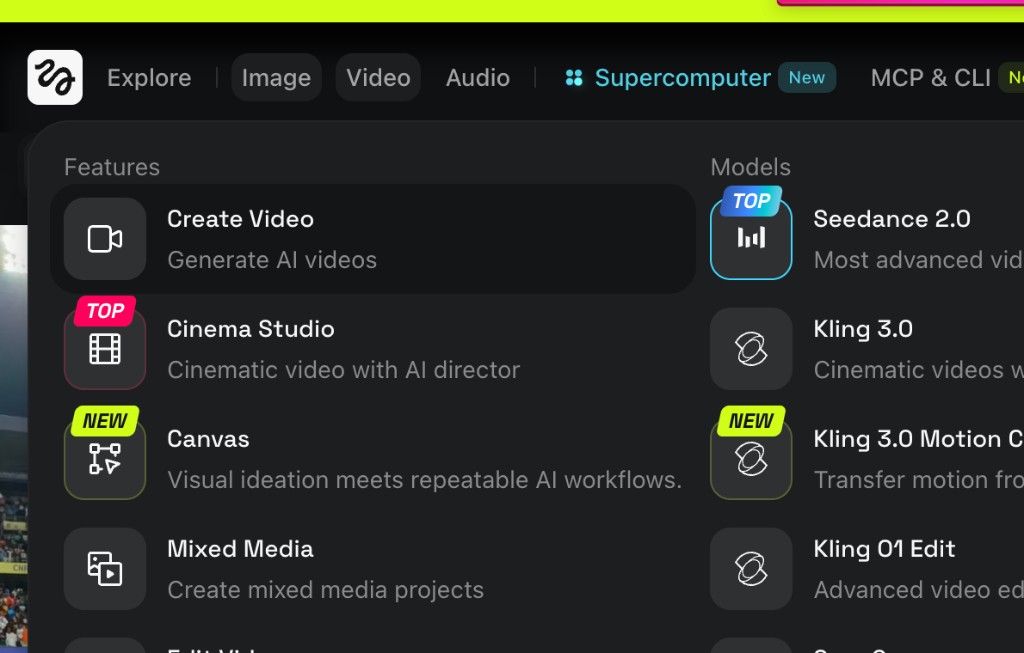
This is not free: a parent should buy a Higgsfield plan first—the Basic tier is often the cheapest way in (about $5/month; confirm the live Pricing page). For images the UI may list Nano Bro, Nano Banana Pro, or similar names in the same spot—they’re the high-quality portrait / “Nano” family of models; pick whichever your subscription shows. Same family idea as AI Tools for Kids (football walkthrough). Flow: Image / Create Image → chosen Nano model, then Video / Create Video / Kling with two references per clip. Kling labels (e.g. 3.0) can change—match your dashboard.
-
Subscribe on Higgsfield first (not free)
With a grown-up, open higgsfield.ai → Pricing. Purchase a plan that fits your budget; most families trying once start with Basic (often around $5/month when we last checked—your invoice total is what matters). You cannot complete this project on a zero-cost unlimited tier. Sign in after checkout.
Tip: If the product renames tiers or prices, trust the official site—not rounded numbers in this guide.
-
List your cricketers and one reference photo
Decide the order of players in the final film (e.g. Rohit → Dhoni → next star). Take one clear, well-lit photo of your child facing the camera—this same reference is used for every “selfie with X” image so their face stays consistent.
Tip: Fewer players for the first project means fewer credits and less editing.
-
Create each picture: Image → Create Image → Nano Bro or Nano Banana Pro
In the top bar choose Image → Create Image. In Models, select Nano Bro, Nano Banana Pro, or the closest “Nano” image model your plan lists (Higgsfield renames products—same workflow: attach your child’s reference photo and generate one finished still per cricketer).
Tip: Save each output in story order before moving to video—those files become your reference frames.
-
Image prompt template (swap the player name)
Use a prompt in this style each time—replace the cricketer’s name, kit, or stadium details as you like. Copy the prompt in the box below; the example uses Virat Kohli. Run a new generation for every player in your story.
Image prompt (copy & edit)
Create a hyper-realistic image of the attached person based strictly on the reference photo. Maintain the exact facial features, skin tone, bone structure, hairstyle, and expression with no alteration or face swapping. Ultra-high fidelity, photorealistic, 8K quality. The attached person is standing inside a packed professional cricket stadium. The pitch is visible under bright floodlights. Virat Kohli is standing beside the attached person, clearly recognizable, wearing a professional cricket (Indian) kit and he is standing inside the ground. Both are standing near the cricket pitch.
Tip: If likeness drifts, shorten the scene description or regenerate 2–3 picks per player and keep the best one.
-
Image to video: Video → Create Video → Kling
Switch to Video → Create Video. In Models, select a Kling option your plan offers (Kling 3.0, Motion Control, etc.—pick the one that accepts your reference-image workflow).
Tip: You’ll repeat this for each consecutive pair of still images.
-
Add two reference images and the motion prompt
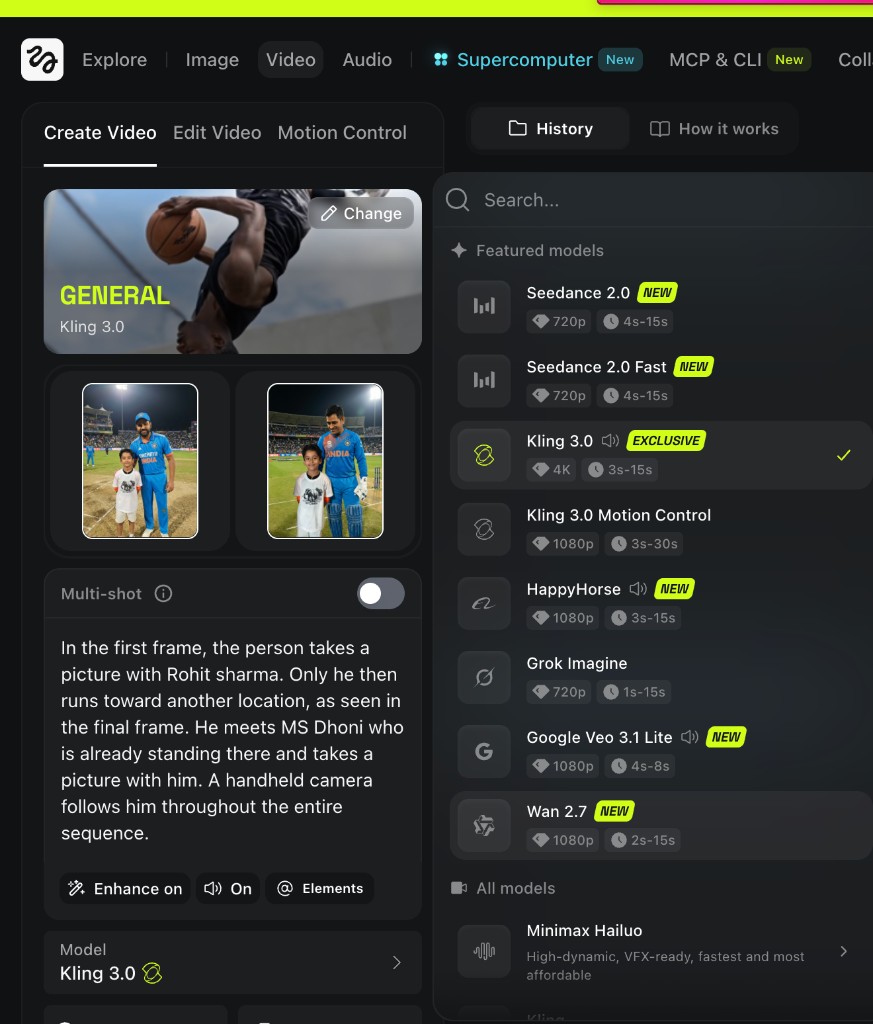
In Create Video, attach your first reference still (segment start) and second reference still (segment end). Paste a motion prompt in the box—example below is Rohit Sharma → MS Dhoni; change the names when you chain the next pair.
Video / motion prompt (copy & edit)
In the first frame, the person takes a picture with Rohit Sharma. Only he then runs toward another location, as seen in the final frame. He meets MS Dhoni who is already standing there and takes a picture with him. A handheld camera follows him throughout the entire sequence.
Tip: For the next clip, advance one player: new first reference = prior ending still, new second = next hero’s still; edit the prompt names.
-
Generate, download, repeat
Run generation and download each clip. Repeat the two-reference + prompt pattern until every segment in your lineup is covered.
Tip: Test one pair before burning credits on the full squad.
-
Stitch everything in an editor
Use CapCut, Edits, iMovie, or similar. Import clips in order, trim, add licensed music if you want, export one video. Keep sharing family-only unless everyone agrees it is clearly AI.
Tip: Decide aspect ratio (9:16 vs 16:9) before stitching.
More about this tool — overview, features, safety, pricing
Overview
You must pay for Higgsfield (Basic ~$5/mo is a common entry point—confirm pricing). Phase 1: stills via Create Image using Nano Bro, Nano Banana Pro, or the Nano-class model your account lists. Phase 2: motion via Create Video + Kling with two references and a handwritten motion prompt. Phase 3: stitch outside Higgsfield.
Product names rotate; if you don’t see “Nano Bro,” look for Nano Banana Pro or another Nano-labelled image model in the same picker.
Credits add up fast—plan prompts before every Generate click.
Key features
- Nano-class models for stills. Nano Bro and Nano Banana Pro (or successors) focus on high-fidelity images; pair them with strict “preserve the attached child, no face swap” wording.
- Kling + dual references. First and last frames anchor the motion between two cricket stills.
- Paid Basic tier to learn. Expect to buy at least Basic-level access rather than a fictional unlimited free run.
Safety & privacy notes
Data & accounts
- Child reference photos are processed on Higgsfield’s servers; read their privacy policy before uploading.
- Synthetic clips of public figures can be misunderstood if posted—label as AI for anyone outside close family when in doubt.
Supervision
- A parent should own the account, approve each generation, and decide what gets shared.
Content & community
- Do not claim the video is real news or a real meeting. Stop if the service refuses a prompt—do not try to bypass safety filters.
- School projects may require you to disclose AI use—ask the teacher.
Family project ideas
- IPL night-stadium tour. Keep the floodlights + pitch look for every still, then vary franchise colours in the motion prompts. (2–3 hours first run)
- Two-player teaser. Two heroes, one Kling segment—cheapest way to validate prompts on a paid Basic wallet. (45–90 min)
Pricing & account
Paid — Basic from ~$5/mo — This project is not free. Higgsfield requires a paid subscription with monthly credits; Basic is usually the smallest tier to buy for a serious try (about $5/month when we last checked—verify on higgsfield.ai/pricing). Every image and video run spends credits.
Account required: Yes
Platforms: web